Installing the Windows tester build
Request access to the current Windows tester build. No admin rights required.
Request the installer
Go to timezylla.com/download and click the 'Request Windows access' button. Approved testers receive the current Windows build through the access flow.
The macOS installer is not publicly available yet.
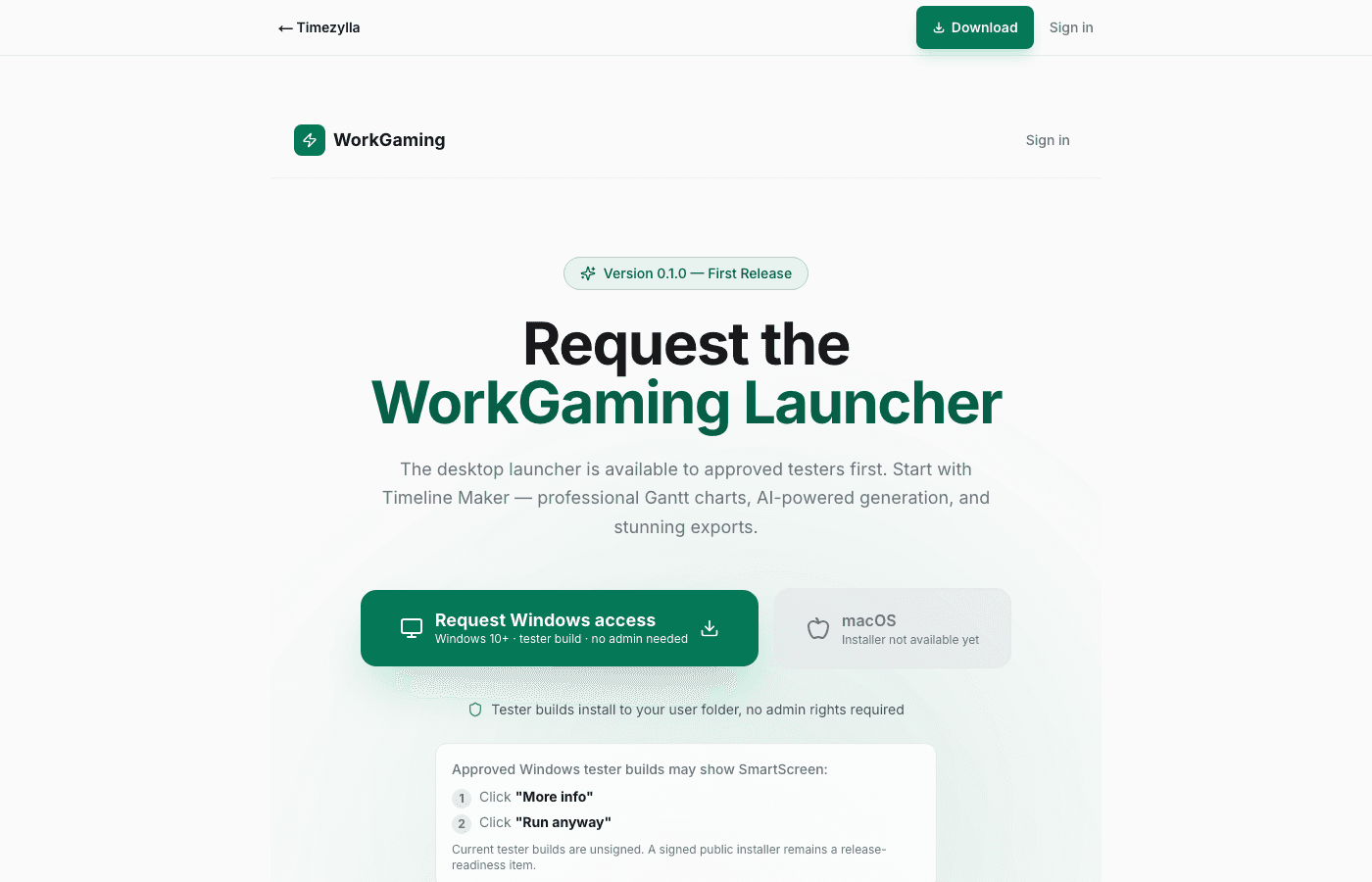
Windows SmartScreen warning
Because current tester builds are not yet code-signed, Windows SmartScreen can show a warning: 'Windows protected your PC'. This is normal for unsigned tester applications.
To proceed: Click 'More info', then click 'Run anyway'. This only happens on the first install.
A signed public installer remains a release-readiness item.
Installation
The installer runs without administrator rights. It installs to your user folder (%LocalAppData%\Programs), not to Program Files.
After installation, open Timezylla from the desktop shortcut or Start Menu entry.
A desktop shortcut and Start Menu entry are created automatically.
Uninstalling
Go to Windows Settings -> Apps -> Apps & features. Search for Timezylla or WorkGaming Launcher and click Uninstall. No admin rights needed.
Was this article helpful?